

RooCards feature
Switch between checkout codes from your iPhone Home Screen
Use a switchable RooCards widget when several loyalty cards need to be ready at checkout, but opening the full app would slow you down.
Set up switchable barcode widgets on iPhone with RooCards Plus. Use the card-grid widget or Spotlight when you need to open a card rather than keep its code visible.

Quick answer
What is a switchable barcode widget?
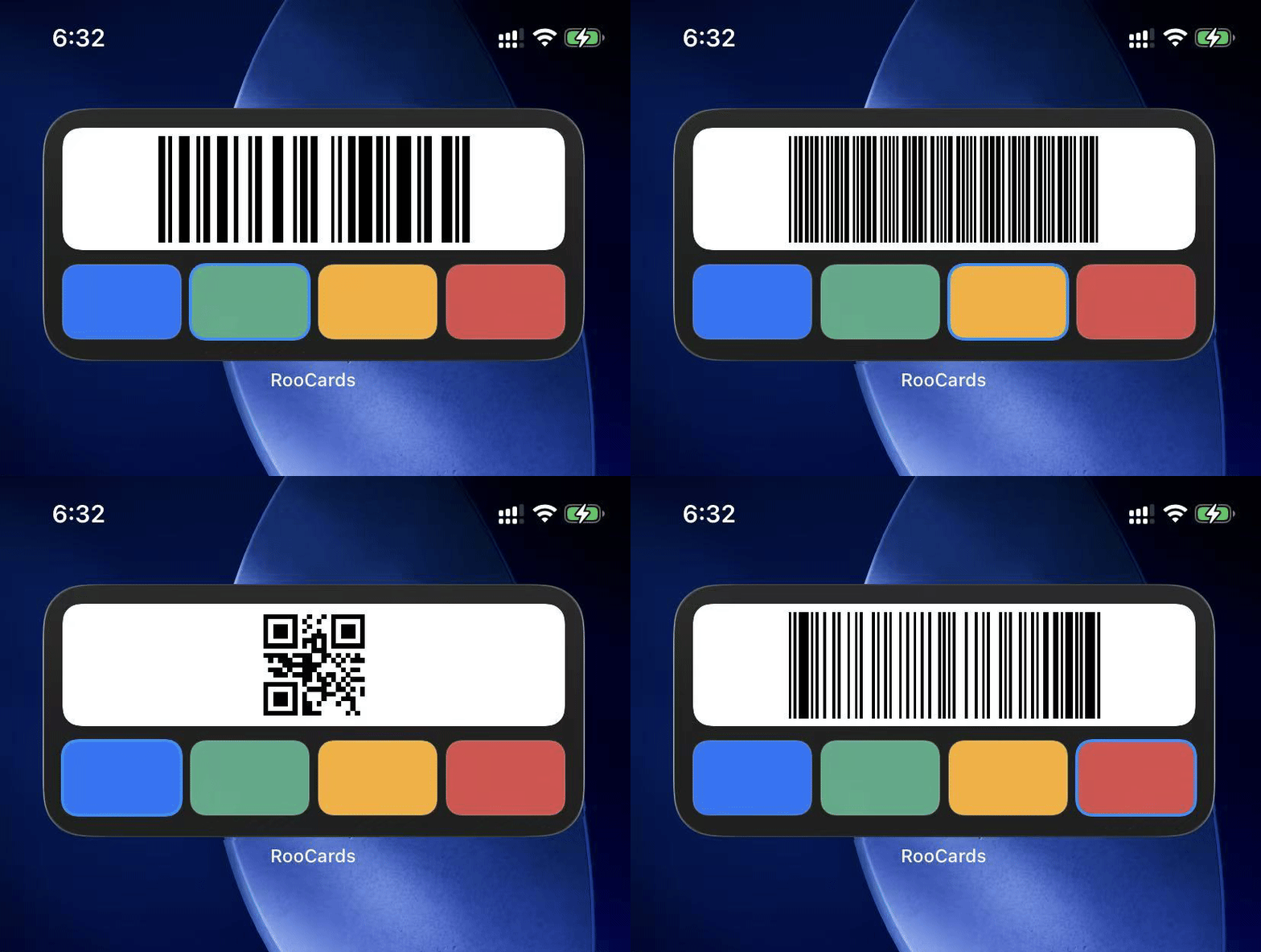
A RooCards switchable barcode widget is an iPhone Home Screen widget that lets you place multiple loyalty cards in one scan-ready widget. Instead of opening the app, finding a card, and then showing its code, you tap a card tile inside the widget and the barcode or QR code above it changes to that card. The medium switchable widget supports up to 4 cards in one row. The large switchable widget supports up to 24 selected cards, shown 8 per page with paging controls. This is useful for supermarket rewards cards, cafe loyalty cards, gym check-in cards, pharmacy cards, retail memberships, and other frequent checkout codes. It is different from a single-code widget because one Home Screen space can handle several cards while keeping the active code visible and ready to scan during everyday checkout.
When to use it
Use it when you need several codes at hand
A single-code widget is best when one card dominates a routine. A switchable barcode widget is better when a few cards compete for the same moment, like checkout, check-in, pickup, or scanning a membership code.
Supermarket rewards cards you switch between during checkout
Cafe, pharmacy, or retail cards that need a scan-ready code
Gym, library, or membership cards used several times each week
QR, PDF417, and linear barcode cards that should stay close to the Home Screen
Medium vs large switchable widgets
| Size | Capacity | Layout | Best for |
|---|---|---|---|
| Medium | Up to 4 cards | One row of 4 card tiles | A small set of everyday checkout cards |
| Large | Up to 24 cards | 2x4 card grid with paging | More frequent stores, gyms, cafes, and memberships |
Visual proof
Settings and Home Screen examples
Configure the widget in RooCards, choose the cards to include, reorder the selected brands, and preview how the medium or large widget will behave before using it on the Home Screen.
Medium switchable widget
Set up a compact widget with up to 4 cards, then switch between those checkout codes from one Home Screen row.

Setup editor
Choose and reorder cards
Pick up to 4 cards, reorder selected brands, and preview the medium widget before saving.

Home Screen
Tap one of four cards
Tap a card tile to switch the barcode or QR code shown above the row.
Large switchable widget
Use a larger 2x4 card grid, paging controls, and up to 24 selected cards for frequent checkout routines.

Setup editor
Configure more cards
Select up to 24 cards for the large widget, with paging available in the live preview.

Home Screen
Switch with a 2x4 grid
Use 8 visible card tiles per page and the bottom paging controls for additional cards.
How setup works in RooCards
- 1. Open RooCards settings and choose Switchable Barcode Widget.
- 2. Pick a medium or large setup slot.
- 3. Select the cards you want in the widget.
- 4. Drag selected brands to reorder them.
- 5. Add the RooCards widget to the iPhone Home Screen and choose the matching setup.
What happens when you tap a card?
Tapping a card tile changes the active code in the widget. The widget state stays local to the widget setup, so switching cards there leaves your in-app selection as it is.
If you need more detail, tapping the code area can open the current card in RooCards. That keeps quick checkout and full card management separate.
Code support
Supported barcode and QR formats
RooCards is designed for common store card, rewards card, gift card, voucher, and membership formats.
FAQ
Switchable barcode widget questions
Can one RooCards widget switch between multiple barcodes?
Yes. A RooCards switchable barcode widget can hold multiple selected cards, and tapping a card tile changes the barcode or QR code shown in the widget.
Does tapping a card in the widget open the app?
Tapping a card tile switches the code inside the widget. Tapping the code area can open the current card in RooCards when you need the full card detail.
What sizes support switchable barcode widgets?
Switchable barcode widgets are designed for medium and large iPhone Home Screen widgets. RooCards keeps the small widget focused on simpler single-code access.
How many cards can a large switchable widget show?
The large switchable widget supports up to 24 selected cards. It shows 8 cards per page in a 2x4 grid with paging controls.
Can it show QR codes as well as barcodes?
Yes. RooCards supports barcode and QR-style formats, including common retail and membership formats such as Code 128, EAN, UPC, PDF417, Aztec, and Data Matrix.
Continue with related RooCards pages
Use these pages to compare the switchable widget with the broader RooCards widget, barcode wallet, iPhone, and Apple Wallet experience.
All RooCards widgets and Spotlight
Compare card-grid widgets, scan-ready widgets, pinned cards, and Spotlight access.
How to use RooCards widgets
Learn how to add RooCards widgets and choose what each widget shows.
Barcode wallet app
Store barcodes, QR codes, rewards cards, memberships, and vouchers in RooCards.
RooCards for iPhone
See the iPhone card wallet experience with widgets, Spotlight, and Apple Wallet support.
Apple Wallet support
Create eligible Apple Wallet passes from cards saved in RooCards.
Try RooCards with your frequent checkout cards
Add your loyalty cards, choose the cards you use most often, and keep their checkout codes closer to the Home Screen.