RooCards FAQ
widgets: RooCards
widgets. Open the right card quickly when you are at checkout, checking in, or showing a membership code.
FAQSet up the widget
There are two parts: first add the widget to your iPhone Home Screen, then choose what it shows in RooCards.
1. Add the widget to your Home Screen
- 1. Go to your iPhone Home Screen.
- 2. Touch and hold an empty area until the apps start to jiggle.
- 3. Tap Edit at the top of the screen.
- 4. Tap Add Widget.
- 5. Search for RooCards.
- 6. Choose the widget type and size you want.
- 7. Tap Add Widget, then tap Done.
The widget is now on your Home Screen.
2. Choose what the widget shows
- 1. Open RooCards.
- 2. Go to Settings.
- 3. Tap Widgets.
- 4. Choose the widget type you want to configure.
- 5. Select the card or cards you want to show.
You can set different cards for different widget types and sizes.
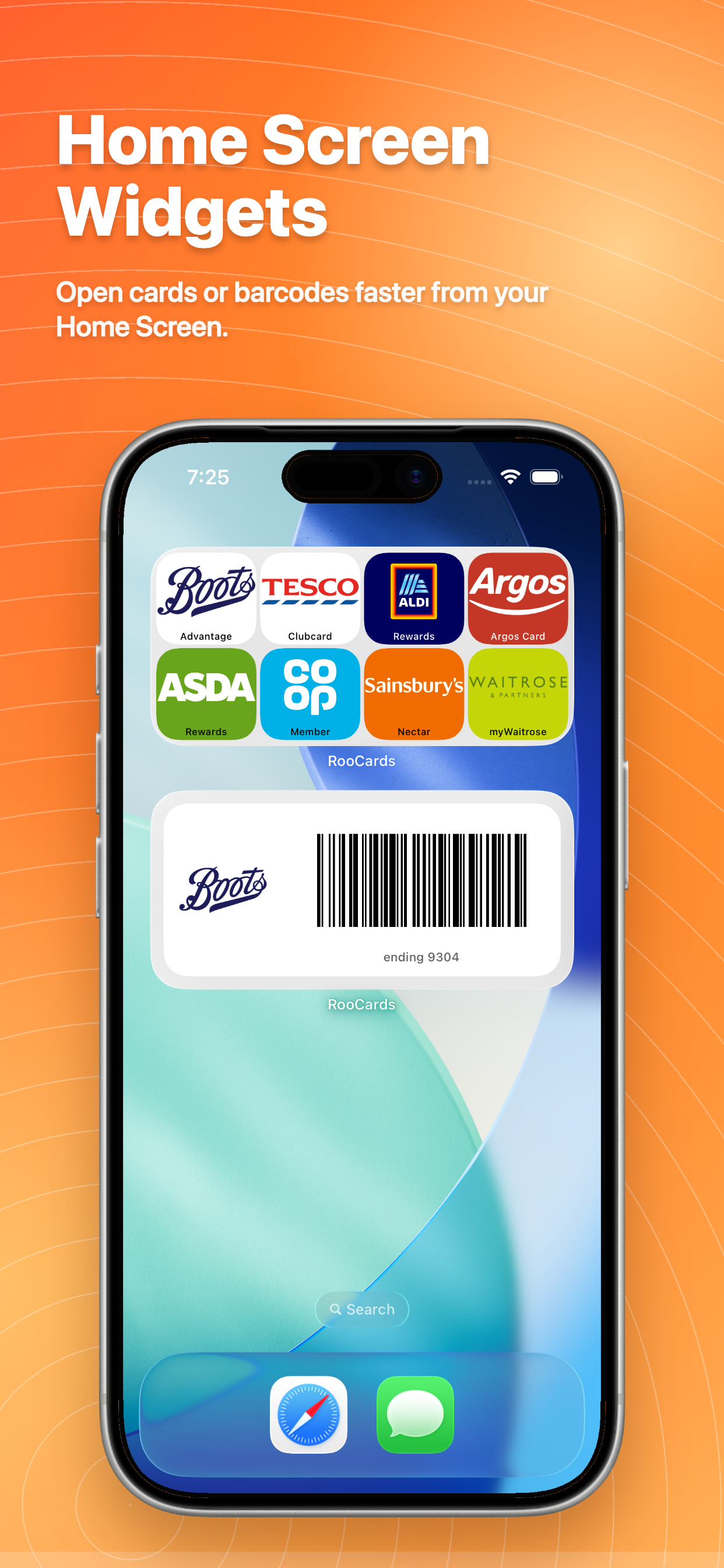
widgets
widgets. Open the right card quickly when you are at checkout, checking in, or showing a membership code.
loyalty cards
- supermarket
- gym
- rewards cards
- membership cards
backup
- RooCards keeps the card-wallet job lightweight, with no required login before you can start.
- Start with the cards you use most often, name them clearly, and keep the important ones easy to open.
- Open the right card quickly when you are at checkout, checking in, or showing a membership code.
Download RooCards to keep everyday cards organised and ready to scan.
RooCards keeps store cards, loyalty cards, membership cards, barcodes, and QR codes ready in an iPhone-first wallet, with a basic Android version available.