RooCards FAQ
How to use the RooCards widget on iPhone
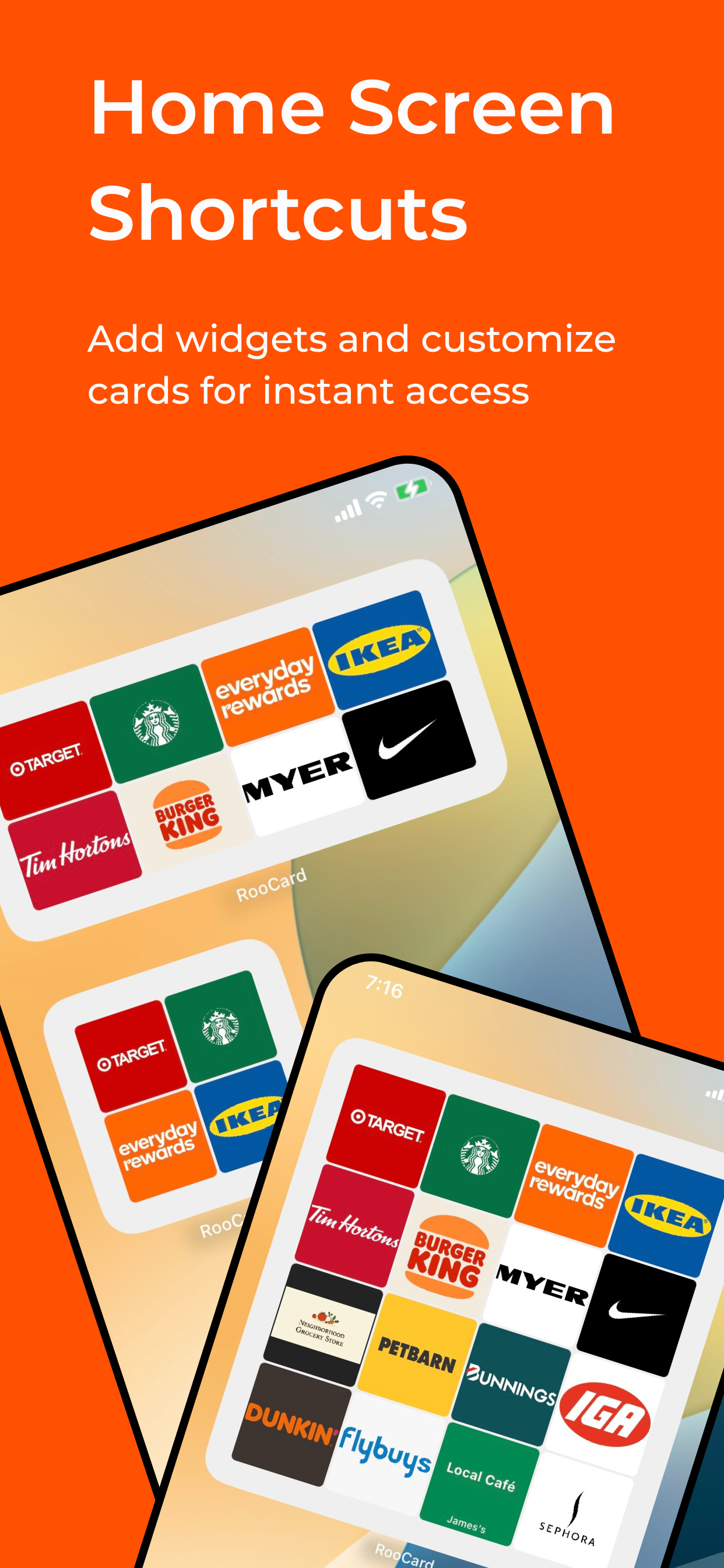
Add a RooCards widget to your Home Screen so your most-used store cards, loyalty cards, and membership cards stay one tap away.
← Back to FAQSet up the widget
- 1. Long press your Home Screen until the apps start to move.
- 2. Tap the plus button and search for RooCards.
- 3. Pick your preferred widget size.
- 4. Add the widget, then open RooCards to choose which cards should appear.
Best cards to feature in a widget
- Frequent supermarket rewards cards
- Gym or fitness check-in cards
- Daily cafe or retail store cards
- Any membership you open several times each week
If the widget is not updating
- Open RooCards once after editing cards.
- Check that Background App Refresh is enabled.
- Remove and re-add the widget if iOS has cached an older state.
Download RooCards and add your first widget
Widgets make the biggest difference when you already know which cards you open most often.