RooCards FAQ
How to search cards on iPhone with RooCards
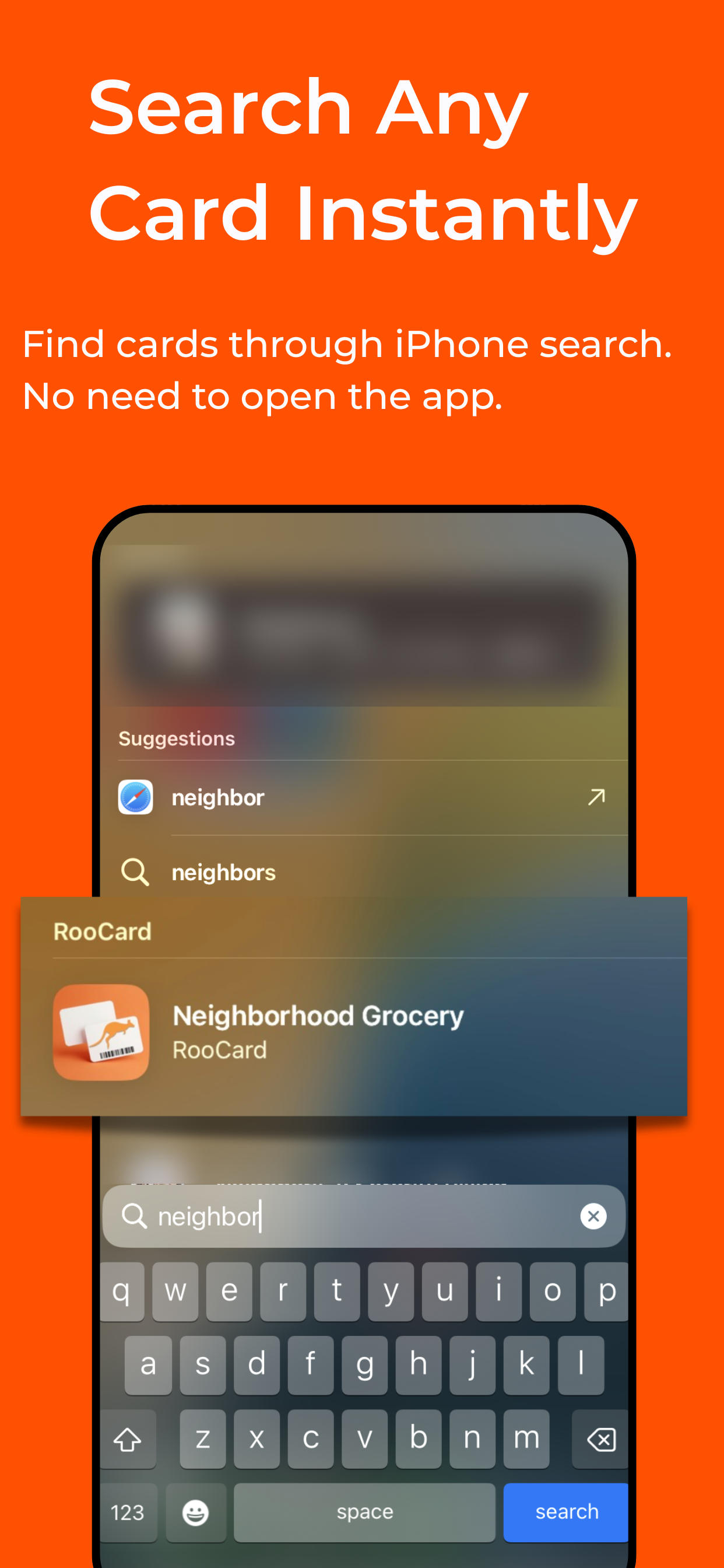
Find store cards, loyalty cards, and membership cards from iPhone Spotlight search without digging through your wallet first.
← Back to FAQUse Spotlight search in four steps
- 1. Open RooCards once after adding new cards so iPhone can index them.
- 2. Swipe down from the Home Screen to open Spotlight.
- 3. Type the card name, store name, or label you use inside RooCards.
- 4. Tap the result to open the card directly in RooCards.
What Spotlight can search
- Store or business name
- Card title and label
- Helpful words you add to notes
If results are missing
- Open RooCards again so iPhone refreshes the index.
- Check Spotlight permissions for RooCards in iPhone settings.
- Use clear card names so search terms are easier to match.
RooCards is easiest to search when your cards are well named
Add a few cards, name them naturally, then try Spotlight search for the exact store or card words you use in real life.